
Foodie+ iOS App Support
Need help with the Foodie+ iOS app? Start here for iOS account, purchase, recipe import, and app troubleshooting.
Foodie+ on iOS and Foodie on the web use the same Foodie account, so your saved recipes, grocery lists, and account details stay connected wherever you sign in. The iOS app can differ from the Foodie web experience.
Contact Foodie
Email info@thefoodie.menu and include your account email, device, iOS version, and what happened. Screenshots are helpful when something looks wrong.
Account & Data
You can manage your account from the Account screen in Foodie. Account deletion removes your Foodie account and saved data.
- If you have an Apple subscription, cancel it through Apple before deleting your Foodie account to avoid future charges. You can still delete your account immediately, but Apple billing may continue until you cancel it.
- Foodie cannot cancel Apple billing on your behalf.
- For privacy or data questions, email us with the account email you use for Foodie.
Foodie+ Subscription
If Foodie+ is not showing in the iOS app after purchase, first try restoring purchases from the Foodie+ screen in the app.
- Apple subscriptions are managed through your Apple ID in iOS Settings.
- Canceling or changing an Apple subscription must be done through Apple.
- Web subscriptions must be managed on the web, not in the iOS app. Go to the Foodie account page to manage your plan.
Recipe Imports
Foodie can import recipes from links, pasted text, screenshots, cookbook pages, and handwritten cards. If an import looks off, review and edit the recipe before saving.
- Paywalls, login pages, private social posts, and blurry photos may not import cleanly.
- For photos, use good lighting and keep the recipe text as flat and readable as possible.
- For links, copy the public recipe URL directly from your browser or share sheet.
Share Extension
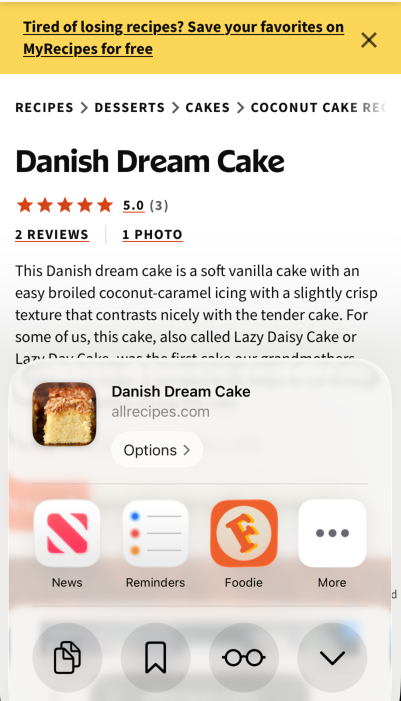
Use the Foodie share extension to send recipe links from Safari, Instagram, TikTok, YouTube, and other supported apps into Foodie.
- The share extension works best with public web links.
- If Foodie does not appear in the share sheet, open iOS share options and add Foodie to your favorites.
- If you are signed out, Foodie may ask you to sign in before saving the shared recipe.
Hands-Free Cooking
Hands-free cooking and voice controls need microphone access. If voice is not responding, check Foodie's microphone permission in iOS Settings.
- Make sure your device is online before starting a voice session.
- Try moving to a quieter spot if Foodie has trouble hearing you.
- You can still use text chat if voice is unavailable.
Saved Recipes & Grocery Lists
Saved recipes and grocery lists sync through your Foodie account. If something looks stale, pull to refresh or sign out and back in.
- Use the same Foodie account across devices to see the same saved recipes.
- Grocery list items can be checked off, edited, or cleared as you shop.
- If a recipe image or grocery item looks wrong, include the recipe name when emailing support.
Feedback
Want to suggest a feature or share product feedback? Use the feedback page so support stays focused on account, billing, and app issues.
Go to Feedback